Hi,
I have another issue here, where i am not sure where that could come from - maybe you have an idea:
When I upload an image from a client on demand (so USB/ISO, boot WinPE, go for upload, select target image) then the image is created normally and without any issue.
But when I create an upload task for a client (Computer -> Client -> Actions -> Upload Image) and boot then into WinPE, then the process starts, but it is somehow not able to write the image.
The target image is not protected, and the image settings are set in the client options of course.

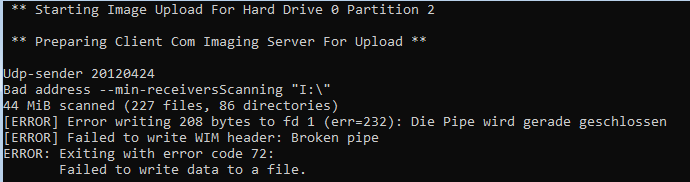
Its hard to see why why the image creation fails. It looks like it is creating the schema correctly, but is not able to capture any image data. One error i could screenshot is this one, the errors of the other partitions are disappearing too fast but I think they are similar:
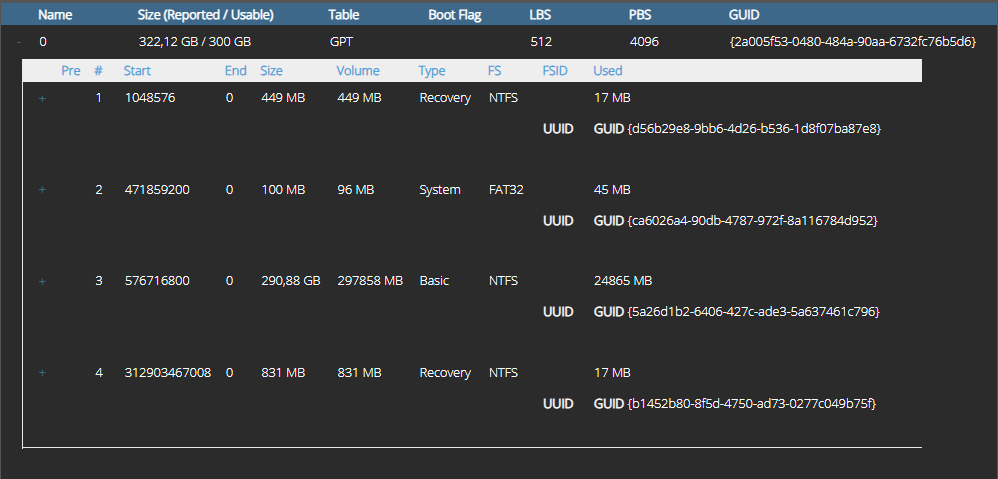
schema:
Another thing i could show, the log of the upload task looks normal AFAIK:
_WinPE Version:
10.0.20348.0
System Architecture:
@{OSArchitecture=64-Bit}
EFI Enabled / Secure Boot Enabled
** Looking For Active Task For .0755-6256-0130-0359-5594-6669-05.80FB5DC4-0762-4DF0-B46C-D8EE022DCC8E **
{"computerId":"false","task":"ond","taskId":null,"computerName":null}
...... This Computer Was Not Found
** Looking For Active Task For 00:15:5D:B2:13:4F.0755-6256-0130-0359-5594-6669-05.80FB5DC4-0762-4DF0-B46C-D8EE022DCC8E **
{"computerId":"55","task":"upload","taskId":"58","computerName":"TEST01C01"}
...... Success
** Verifying Active Task **
computer_name=TEST01C01
image_name=Muster_neu
profile_id=4
pre_scripts=""
before_file_scripts=""
after_file_scripts=""
file_copy=False
sysprep_tags=""
image_type=File
set_bootmgr=True
display_sleep_time=5
web_cancel=true
task_completed_action="Reboot"
remove_gpt_structures=true
skip_shrink_volumes=true
skip_shrink_lvm=true
compression_algorithm=gzip
compression_level=-1
skip_bitlocker_check=true
skip_hibernation_check=true
image_server="http://dc1:8888/clientimaging/"
...... Success
** Looking For Hard Drive(s) **
** Displaying Available Devices **
Number Friendly Name Serial Number HealthStatus OperationalStatus Total Size Partition
Style
0 Msft Virtu... Healthy Online 300 GB GPT
...... Found 1 Drives
** Displaying Current Partition Table On 0
DiskPath: \?\scsi#disk&ven_msft&prod_virtual_disk#5&33cb5d77&0&000000#{53f56307-b6bf-11d0-94f2-00a0c91efb8b}
PartitionNumber DriveLetter Offset Size Type
1 C 1048576 449 MB Recovery
2 471859200 100 MB System
3 D 576716800 290.88 GB Basic
4 E 312903467008 831 MB Recovery
** Updating Client Status To In-Progress **
** Removing All Files For Existing Image: Muster_neu **
** Creating Image Schema **
...... imageSchema: {"harddrives": [ {"name":"0","size":"629145600","table":"GPT","boot":"","lbs":"512","pbs":"4096","guid":"{2a005f53-0480-484a-90aa-6732fc76b5d6}","active":"true","partitions": [ {"number":"1","start":"1048576","end":"0","size":"919552","volumesize":"449","type":"Recovery","usedmb":"17","fsType":"NTFS","fsid":"","uuid":"","guid":"{d56b29e8-9bb6-4d26-b536-1d8f07ba87e8}","active":"true","customsize":"","customsizeunit":"","forcefixedsize":"false","prefix":"","efibootloader":"","volumegroup": { } },{"number":"2","start":"471859200","end":"0","size":"204800","volumesize":"96","type":"System","usedmb":"45","fsType":"FAT32","fsid":"","uuid":"","guid":"{ca6026a4-90db-4787-972f-8a116784d952}","active":"true","customsize":"","customsizeunit":"","forcefixedsize":"false","prefix":"","efibootloader":"","volumegroup": { } },{"number":"3","start":"576716800","end":"0","size":"610013184","volumesize":"297858","type":"Basic","usedmb":"24865","fsType":"NTFS","fsid":"","uuid":"","guid":"{5a26d1b2-6406-427c-ade3-5a637461c796}","active":"true","customsize":"","customsizeunit":"","forcefixedsize":"false","prefix":"","efibootloader":"","volumegroup": { } },{"number":"4","start":"312903467008","end":"0","size":"1701888","volumesize":"831","type":"Recovery","usedmb":"17","fsType":"NTFS","fsid":"","uuid":"","guid":"{b1452b80-8f5d-4750-ad73-0277c049b75f}","active":"true","customsize":"","customsizeunit":"","forcefixedsize":"false","prefix":"","efibootloader":"","volumegroup": { } }] }] }
...... Success
** Starting Image Upload For Hard Drive 0 Partition 1
curl.exe --data "taskId=58&partition=1" http://dc1:8888/clientimaging/UpdateProgressPartition --connect-timeout 10 --stderr -
** Preparing Client Com Imaging Server For Upload **
...... partitionNumber: 1
wimcapture C:\ - --compress=fast | udp-sender --portbase 9064 --pointopoint --no-progress --mcast-rdv-address --min-receivers 1
** Starting Image Upload For Hard Drive 0 Partition 2
curl.exe --data "taskId=58&partition=2" http://dc1:8888/clientimaging/UpdateProgressPartition --connect-timeout 10 --stderr -
** Preparing Client Com Imaging Server For Upload **
...... partitionNumber: 2
wimcapture I:\ - --compress=fast | udp-sender --portbase 9066 --pointopoint --no-progress --mcast-rdv-address --min-receivers 1
** Starting Image Upload For Hard Drive 0 Partition 3
curl.exe --data "taskId=58&partition=3" http://dc1:8888/clientimaging/UpdateProgressPartition --connect-timeout 10 --stderr -
** Preparing Client Com Imaging Server For Upload **
...... partitionNumber: 3
wimcapture D:\ - --compress=fast | udp-sender --portbase 9068 --pointopoint --no-progress --mcast-rdv-address --min-receivers 1
** Starting Image Upload For Hard Drive 0 Partition 4
curl.exe --data "taskId=58&partition=4" http://dc1:8888/clientimaging/UpdateProgressPartition --connect-timeout 10 --stderr -
** Preparing Client Com Imaging Server For Upload **
...... partitionNumber: 4
wimcapture E:\ - --compress=fast | udp-sender --portbase 9070 --pointopoint --no-progress --mcast-rdv-address --min-receivers 1
** Closing Active Task **_
Any ideas here why the on demand upload works without any problem but the upload via task fails like that?
BR,
Jamilian